




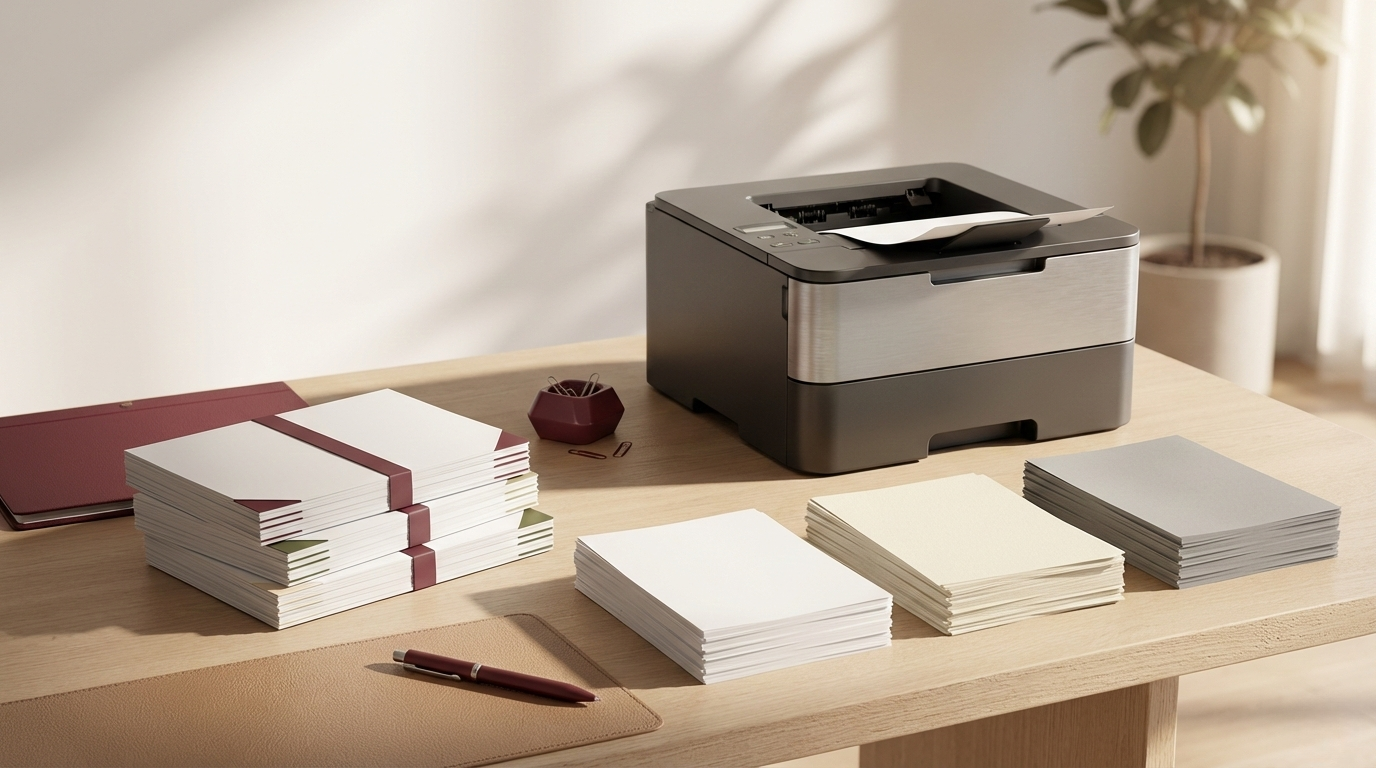
Printing is a core part of modern business—whether you’re producing packaging inserts, training packets, reports, menus, or multi-page PDFs for customers and teams. But the moment you print multiple copies of a multi-page document, one small setting can decide whether your output is clean and ready-to-assemble—or a mixed stack that needs manual sorting.
That setting is called Collate. If you’ve ever wondered what collate means when printing, the answer is simple: it controls the page order of each copy so every set comes out in the correct sequence.
In this guide, you’ll learn the real-world collated printing meaning, the difference between collated vs uncollated printing, where collation is used, how to turn it on in your print dialog, and the most common mistakes to avoid when printing documents at scale.
What Does “Collate” Mean in Printing?
In general, collate means “to assemble in proper order.” In printing, collation refers to printing multi-page documents as complete, ordered sets. This is why you’ll see terms like collation, collated sets, print sequence, and document ordering in professional printing workflows.
When the Collate option is enabled, the printer outputs pages in order for each copy—so you get one full set, then the next full set, and so on. When it’s disabled (uncollated), the printer groups pages by page number—so you get all Page 1s first, then all Page 2s, etc.
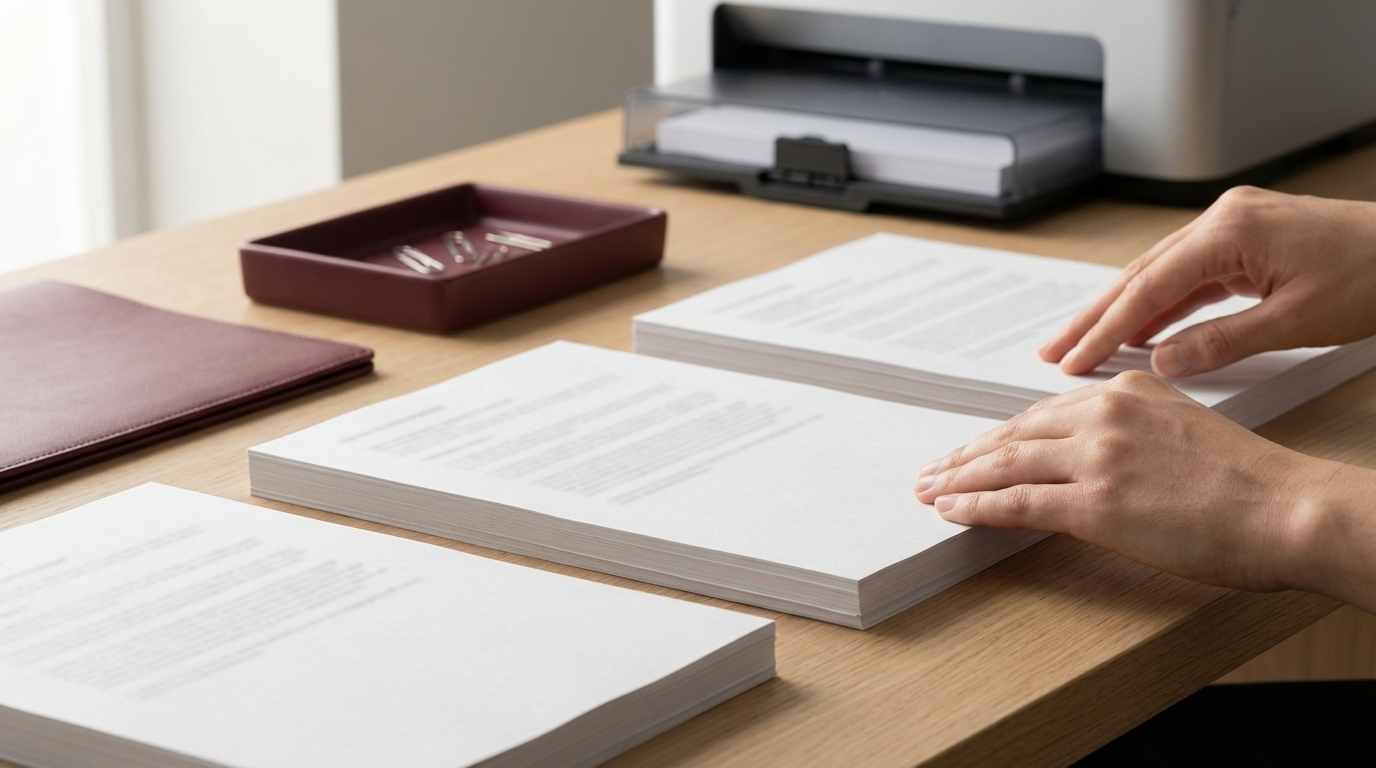
Collation matters most when you’re printing multiple copies of manuals, reports, booklets, statements, presentation handouts, or any document that must be read in sequence or assembled (stapled, bound, packed, or distributed).
Collated vs. Uncollated Printing: A Simple Example
Let’s say you’re printing a 4-page document and you need 3 copies. The difference between collated and uncollated output becomes instantly clear.
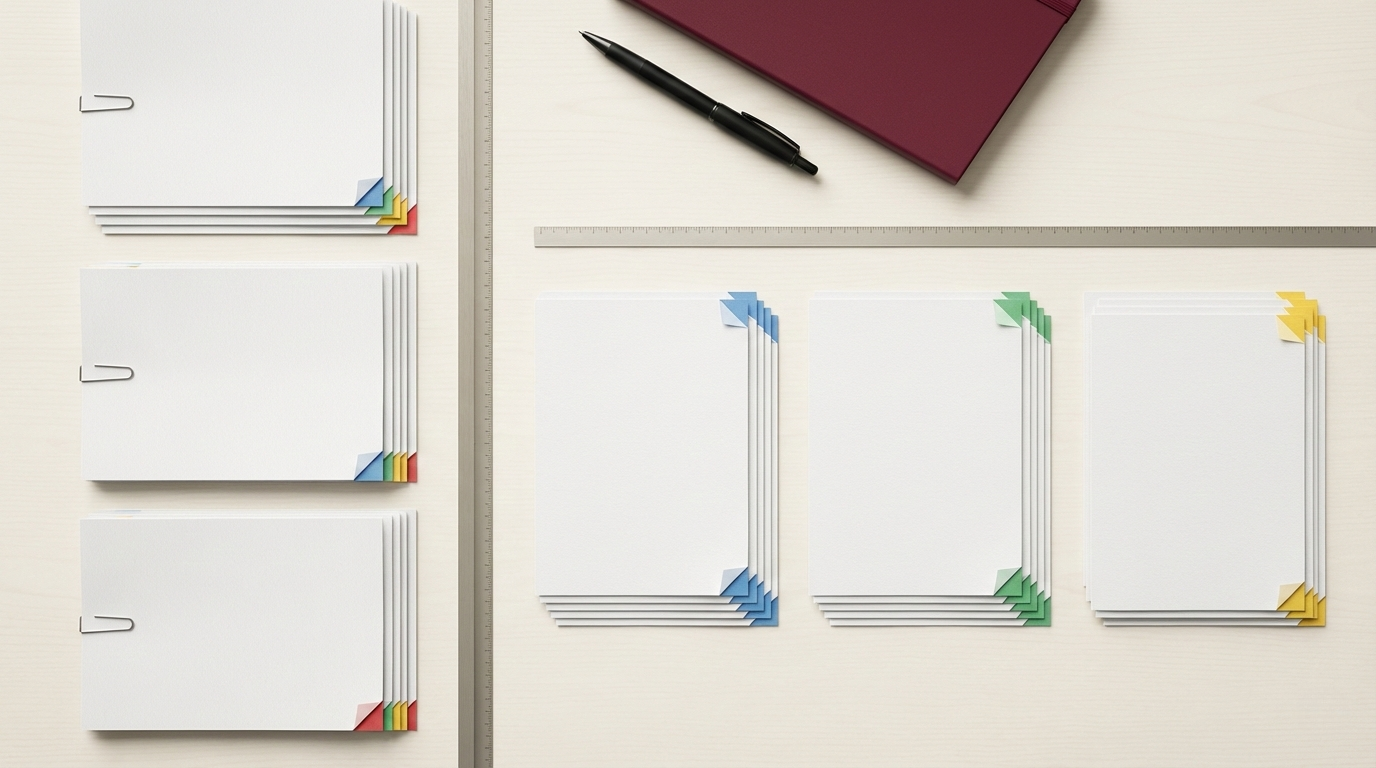
If Collate Is ON (Collated)
Your printer produces complete sets in the right order:
- Copy 1: Page 1, Page 2, Page 3, Page 4
- Copy 2: Page 1, Page 2, Page 3, Page 4
- Copy 3: Page 1, Page 2, Page 3, Page 4
If Collate Is OFF (Uncollated)
Your printer produces stacks grouped by page number:
- Page 1 (3 copies)
- Page 2 (3 copies)
- Page 3 (3 copies)
- Page 4 (3 copies)
Collated output is ideal when each copy needs to be complete and ready for finishing. Uncollated output can be useful when you want bulk stacks of individual pages (for example, separate handouts, labels, or single-page distribution).
When Should You Use Collated Printing?
Turn Collate on when you’re printing a multi-page document and you need more than one copy—especially when those documents will be stapled, bound, inserted, packaged, or handed to multiple recipients.
Typical “collate on” scenarios include training packets, onboarding manuals, proposal decks, restaurant menus, academic materials, and multi-page customer documents like statements, billing, and reports.
Leave collate off if you specifically want page stacks grouped together—such as printing bulk copies of a single page, separating pages for different departments, or producing stacks intended for later manual assembly with a specialized workflow.
Where Collation Is Used (Industries + Practical Use Cases)
Collation is used anywhere document order matters. If pages must be read in sequence or assembled into a finished piece, collated printing is the standard.
- Legal documents, contracts, and case files
- Movie scripts and production pages
- Restaurant menus and multi-page table inserts
- Presentation handouts and printed slide decks
- Bank statements, billing packets, and reports
- Storybooks, academic guides, journals, and magazines
Packaging & Fulfillment Workflows (Brand-Ready Use)
For product brands, collation shows up in everyday packaging operations. If you include instruction booklets, warranty sheets, user guides, or multi-page inserts inside boxes, collated sets keep fulfillment fast and error-free—especially during busy production runs.
If you’re preparing printed inserts to go inside custom packaging, explore Custom Packaging Inserts and make sure your print sequence matches your packing workflow. The cleaner your collation, the smoother your assembly line.
How to Turn “Collate” On (Windows, Mac, and PDFs)
Most printers and applications place the Collate option inside the print dialog—often under Copies or Finishing. Some office machines label it as Sort or Set printing.
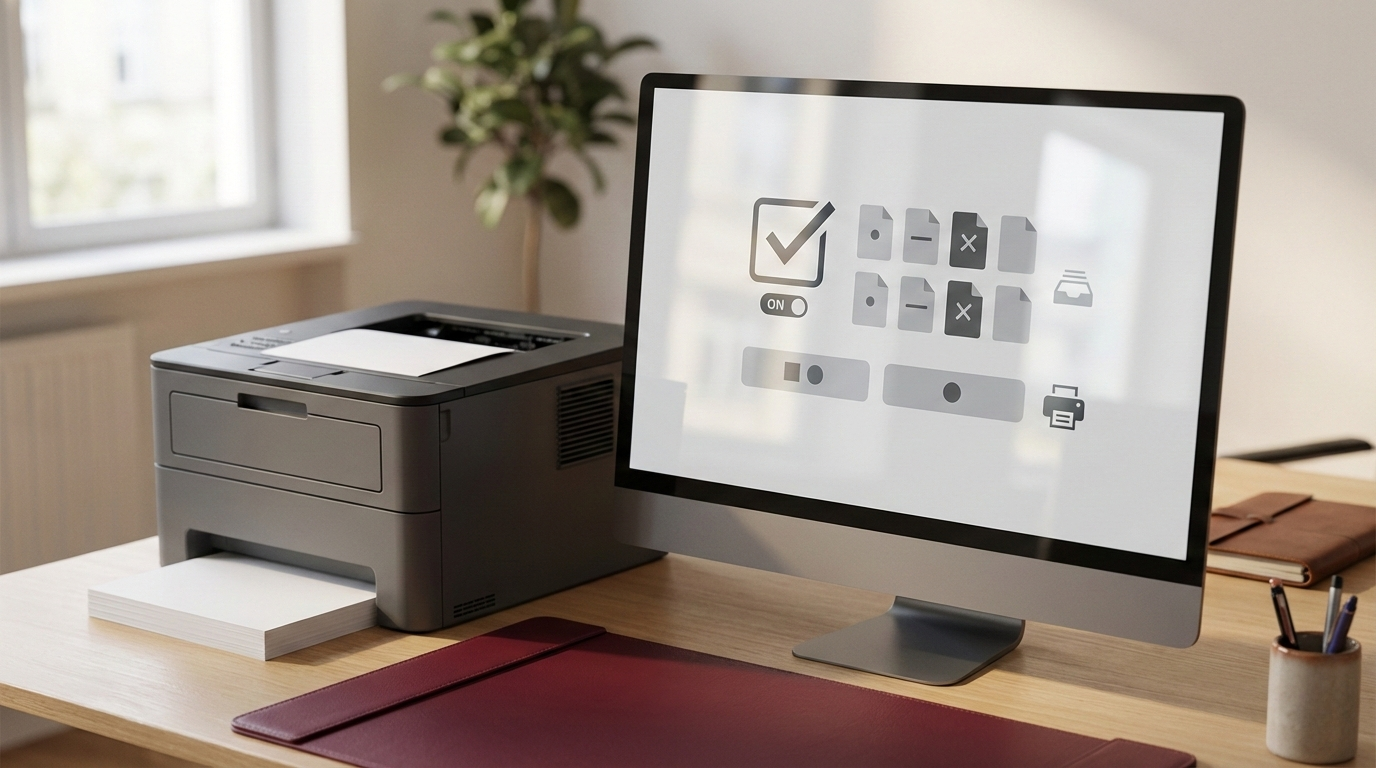
Windows (Most Apps)
Open Print (Ctrl + P), set the number of copies, then check Collate. If you see a “Finishing” menu, Collate may be inside that dropdown depending on your printer driver.
Mac
Go to File → Print, find the Copies section, and enable Collated. If your printer supports it, you may also see options like “Sort” or “Offset stacking” to physically separate sets.
Printing a PDF (Adobe Acrobat / Browser PDF Viewer)
When printing PDFs, check Collate in the Copies area. Also confirm that “Reverse pages” is not enabled if you want standard page order. This is a common cause of “my pages are out of order” confusion.
Collate vs. Duplex (Double-Sided) Printing
Collate and duplex are not the same thing. This mix-up is extremely common, especially in office print settings and PDF printing menus.
- Collate controls the order of pages for each copy (complete sets).
- Duplex (double-sided) controls whether the printer prints on both sides of the paper.
You can use them together. For example, a double-sided report printed in multiple copies should usually be both duplex + collated so each set is complete, readable, and ready for stapling or binding.
Why Collation Matters: Key Benefits
1) Saves time: Collated printing eliminates manual page sorting. If you print 25-page packets for 30 people, collate can save hours of labor and prevent last-minute chaos.
2) Reduces errors: Collation lowers the risk of missing pages, mixed copies, and incorrect sequences—problems that can look unprofessional and cause real confusion for customers or internal teams.
3) Produces assembly-ready output: Collated sets are ready for stapling, saddle stitching, binding, packing, or distribution. This is especially valuable when your documents are part of a product experience or unboxing moment.
If you’re pairing premium printing with premium packaging, explore Custom Printed Boxes and Custom Folding Cartons—because print clarity and packaging presentation work together to create a higher-perceived value.
Common Collation Mistakes (And Quick Fixes)
Mistake #1: Reverse order printing. Some printers default to “last page first.” If your sets look reversed, check for “Reverse pages” or “Back to front” in your print dialog and disable it.
Mistake #2: Confusing “Booklet” with Collate. Booklet mode rearranges pages for folding (like 1–8, 2–7). Collate does not reorder pages for booklet imposition—it only outputs complete sets in normal reading order.
Mistake #3: Printer driver differences. On some office printers, Collate is labeled as “Sort.” If you can’t find Collate, search for “Sort,” “Set,” or “Finishing” options.
FAQs
Should I collate when printing?
Yes—if you’re printing multi-page documents in more than one copy and you want each copy in the correct order. Collated sets are faster to distribute and easier to finish (staple/bind).
What does uncollated mean when printing?
Uncollated printing means the printer outputs all copies of each page together (all Page 1s, then all Page 2s, etc.) instead of producing complete sets per copy.
Is collated the same as double-sided?
No. Collate controls page order for each copy, while double-sided (duplex) controls whether the printer prints on both sides of the paper.
What does “collate” mean on a printer?
It means the printer will output multi-page documents as complete, ordered sets—Copy 1 in order, then Copy 2 in order, and so on.
Where can I learn more about premium printing finishes for packaging?
If you want a deeper breakdown of print options and presentation—like CMYK vs PMS, coatings, foils, embossing, and premium finishes—see Packaging Printing & Finishes Guide.


